Windows 10 Iso Download for Mac Problems
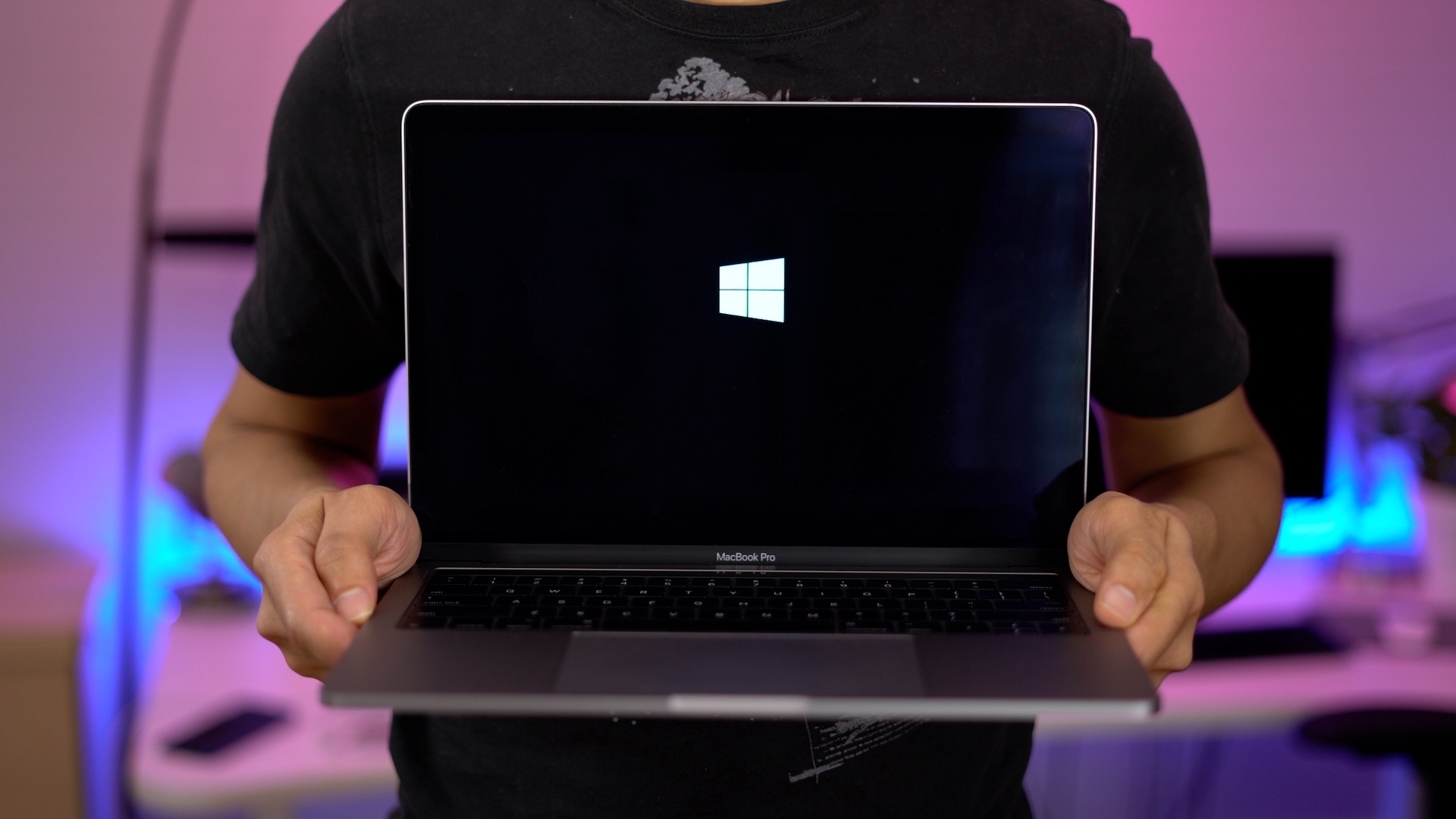
If you're interested in installing Windows 10 on your Mac'south internal bulldoze, you lot can easily do so by means of Microsoft'southward Windows 10 ISO download and the macOS Kicking Camp Banana. The installation can exist a little time consuming, but it is by no ways difficult. Check out our full video walkthrough within for the details.
Annotation: Before y'all practise anything, back up your Mac. This is always a proficient idea anytime you're modifying the sectionalisation table.
Macs that support Windows 10
For more details, visitApple'due south Kick Camp back up folio for Windows 10.
MacBook Pro
- MacBook Pro (15-inch, Belatedly 2016)
- MacBook Pro (13-inch, Late 2016, 4 Thunderbolt three Ports)
- MacBook Pro (13-inch, Late 2016, 2 Thunderbolt iii Ports)
- MacBook Pro (Retina, 15-inch, Mid 2015)
- MacBook Pro (Retina, 13-inch, Early 2015)
- MacBook Pro (Retina, 15-inch, Mid 2014)
- MacBook Pro (Retina, thirteen-inch, Mid 2014)
- MacBook Pro (Retina, fifteen-inch, Late 2013)
- MacBook Pro (Retina, 13-inch, Belatedly 2013)
- MacBook Pro (Retina, 15-inch, Early 2013)
- MacBook Pro (Retina, 13-inch, Early on 2013)
- MacBook Pro (Retina, 13-inch, Belatedly 2012)
- MacBook Pro (Retina, Mid 2012)
- MacBook Pro (13-inch, Mid 2012)
- MacBook Pro (xv-inch, Mid 2012)
MacBook Air
- MacBook Air (xiii-inch, Early 2015)
- MacBook Air (11-inch, Early 2015)
- MacBook Air (13-inch, Early 2014)
- MacBook Air (11-inch, Early 2014)
- MacBook Air (13-inch, Mid 2013)
- MacBook Air (11-inch, Mid 2013)
- MacBook Air (13-inch, Mid 2012)
- MacBook Air (xi-inch, Mid 2012)
MacBook
- MacBook (Retina, 12-inch, Early on 2016)
- MacBook (Retina, 12-inch, Early on 2015)
iMac
- iMac (Retina 5K, 27-inch, Late 2015)
- iMac (Retina 4K, 21.5-inch, Late 2015)
- iMac (21.5-inch, Tardily 2015)
- iMac (Retina 5k, 27-inch, Mid 2015)
- iMac (Retina 5K, 27-inch, Tardily 2014)
- iMac (21.5-inch, Mid 2014)
- iMac (27-inch, Tardily 2013)
- iMac (21.five-inch, Late 2013)
- iMac (27-inch, Late 2012)
- iMac (21.5-inch, Late 2012)
Mac mini
- Mac mini (Late 2014)
- Mac mini Server (Late 2012)
- Mac mini (Belatedly 2012)
Mac Pro
- Mac Pro (Late 2013)
Download the Windows 10 ISO
Step 1: Visit Microsoft'sDownload Windows 10 Disc Paradigm (ISO File) page. For Edition, cull Windows 10, and click Confirm. Next, select the desired language, and click Confirm. Finally, click the 64-chip Download push to begin the Windows 10 ISO download.
Run Boot Camp Banana
Step ii: In one case the ISO download is completed, launch Kick Campsite Banana in Applications → Utilities and click Continue.
Step iii: Click the Cull button next to the ISO image box, and select the ISO file downloaded in step 1.
Video walkthrough
Subscribe to 9to5Mac on YouTube for more video walkthroughs
Step four: Conform the Boot Army camp partition size past moving the Windows division to the desired amount of space. You lot'll desire to leave plenty room for your macOS installation, merely you lot'll also want to allocate enough storage space for the Windows 10 partition. A lot will depend on how much space you have, and how you plan on utilizing the Windows 10 installation. If y'all plan on installing a large corporeality of Windows ten applications and games, then y'all'll need to have that into consideration.
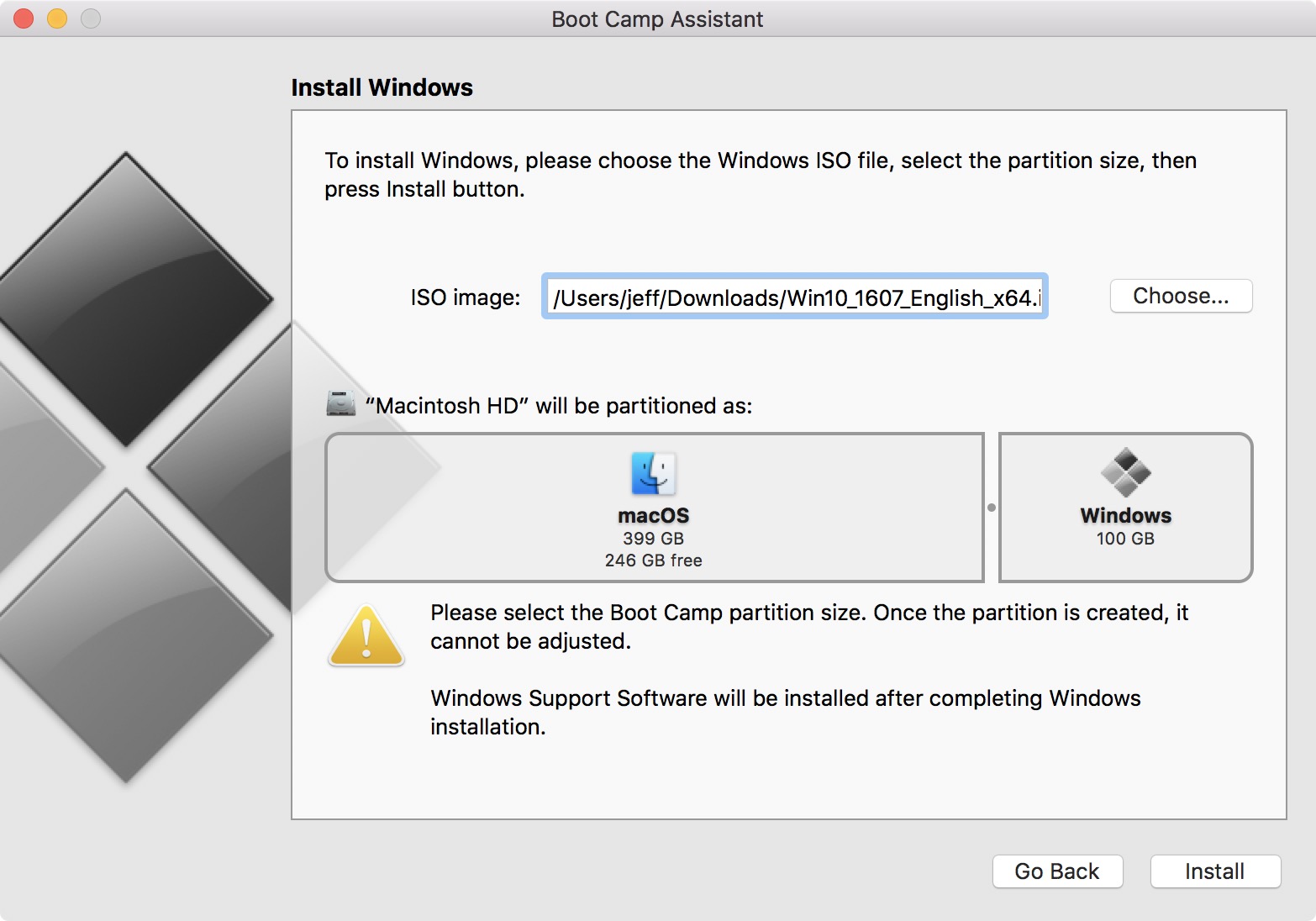
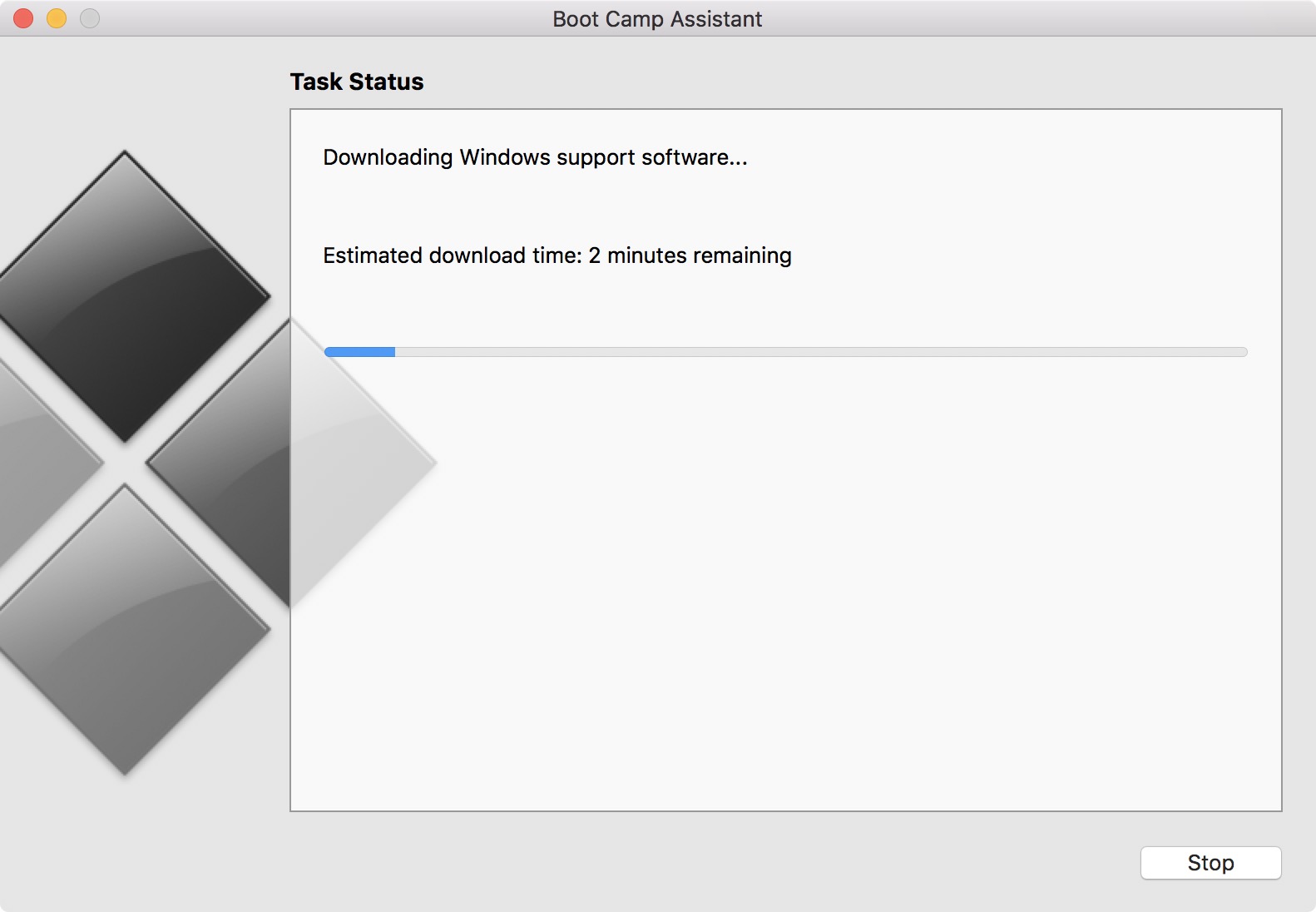
Pace 5: Afterwards selecting the ISO file and adjusting the division sizes, click Install. The Boot Military camp Banana will download Windows support software, partition the disk, and copy the necessary Windows files to go started. Yous will then exist prompted to enter your administrator countersign, and shortly thereafter, macOS volition reboot into Windows Setup.
Install Windows ten
Step 6: Upon reboot y'all'll encounter the Windows logo followed by the Windows Setup screen. Select the desired language, time and country format, along with keyboard or input method, and click Side by side.
Pace seven: You'll now get in at the Activate Windows box. If you already have a Windows 10 product key, enter it and click Side by side. Otherwise, click I don't have a product key at the bottom of the box.
Step 8: Select either Windows 10 Pro or Windows 10 Domicile. If you lot plan on buying Windows, the Home version is the more economical of the two at $99, and chances are you may non need the features offered in the Pro edition anyway. However, if y'all plan on taking advantage of the Windows Insider Program, which allows you to substantially beta test Windows 10 using Microsoft-provided activation keys, and then you might decide to get with the Pro version. You can compare each version of Windows x hither. Click Side by side after choosing the desired version.
Step ix: On the Applicable notices and license terms screen, cheque the I accept the license terms box in the bottom left-hand corner, and click Next.
Step ten: The installation process will now embark. Windows Setup will copy needed files, and install features and updates. The installation procedure should only take a few minutes. In one case it's complete, your Mac will automatically reboot after 10 seconds.
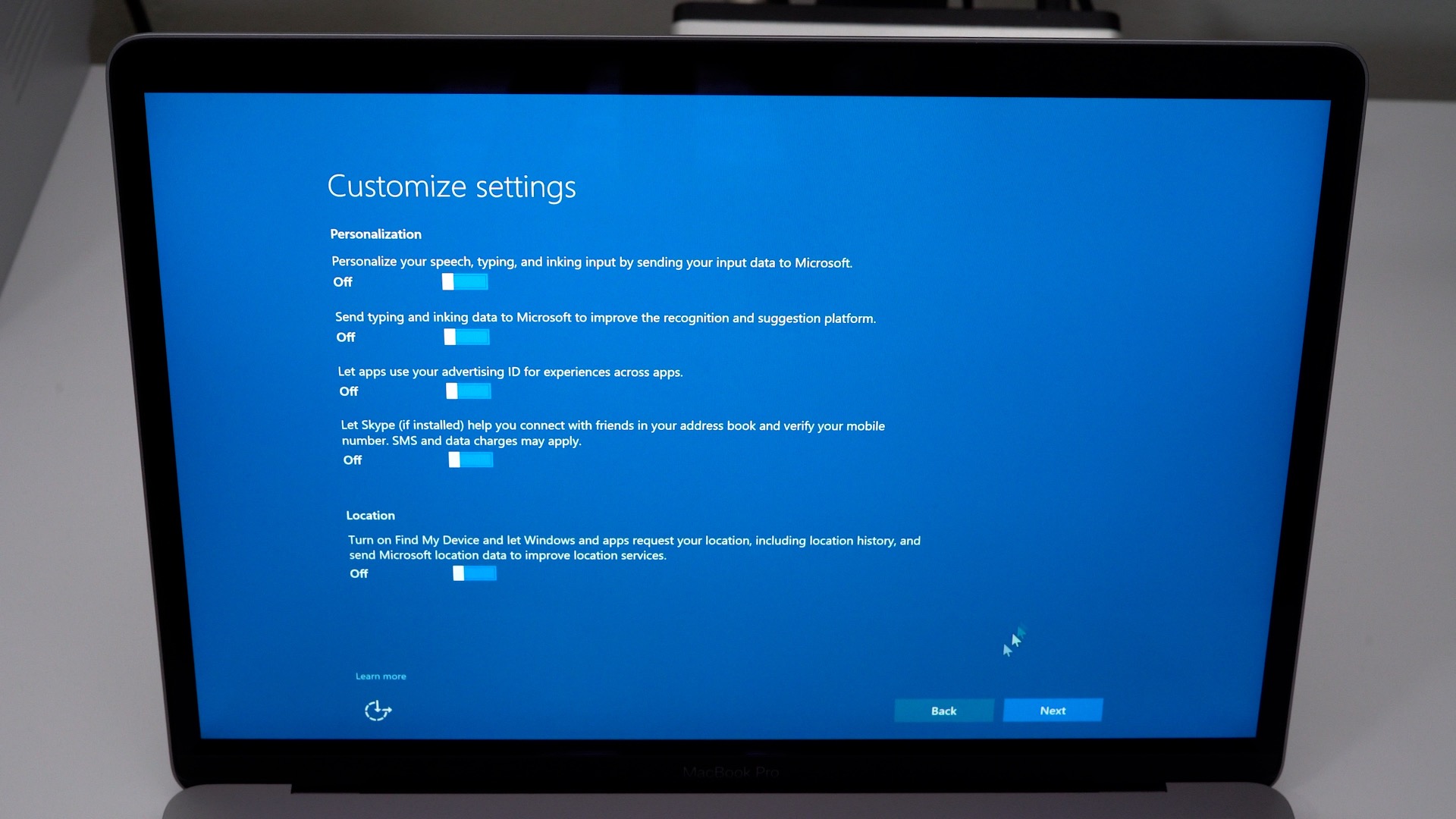
Stride 11: Upon rebooting, the Windows logo will appear once again, and the setup process volition continue and reboot again. Eventually. You'll meet the bluish Become going fast screen. You can opt to use express settings, but I recommend clicking the Customize push and disabling virtually, if non all of the switches. Click Next to proceed to the next pages and repeat the process.
Footstep 12: You'll now be asked to create an account. An account name is required, but a password is not. Click Next one time you select the desired user proper noun and countersign combination.
Footstep 13: On the Meet Cortana screen, you tin choose to enable the Cortana personal banana. I recommend keeping it disabled by clicking the Non at present push button.
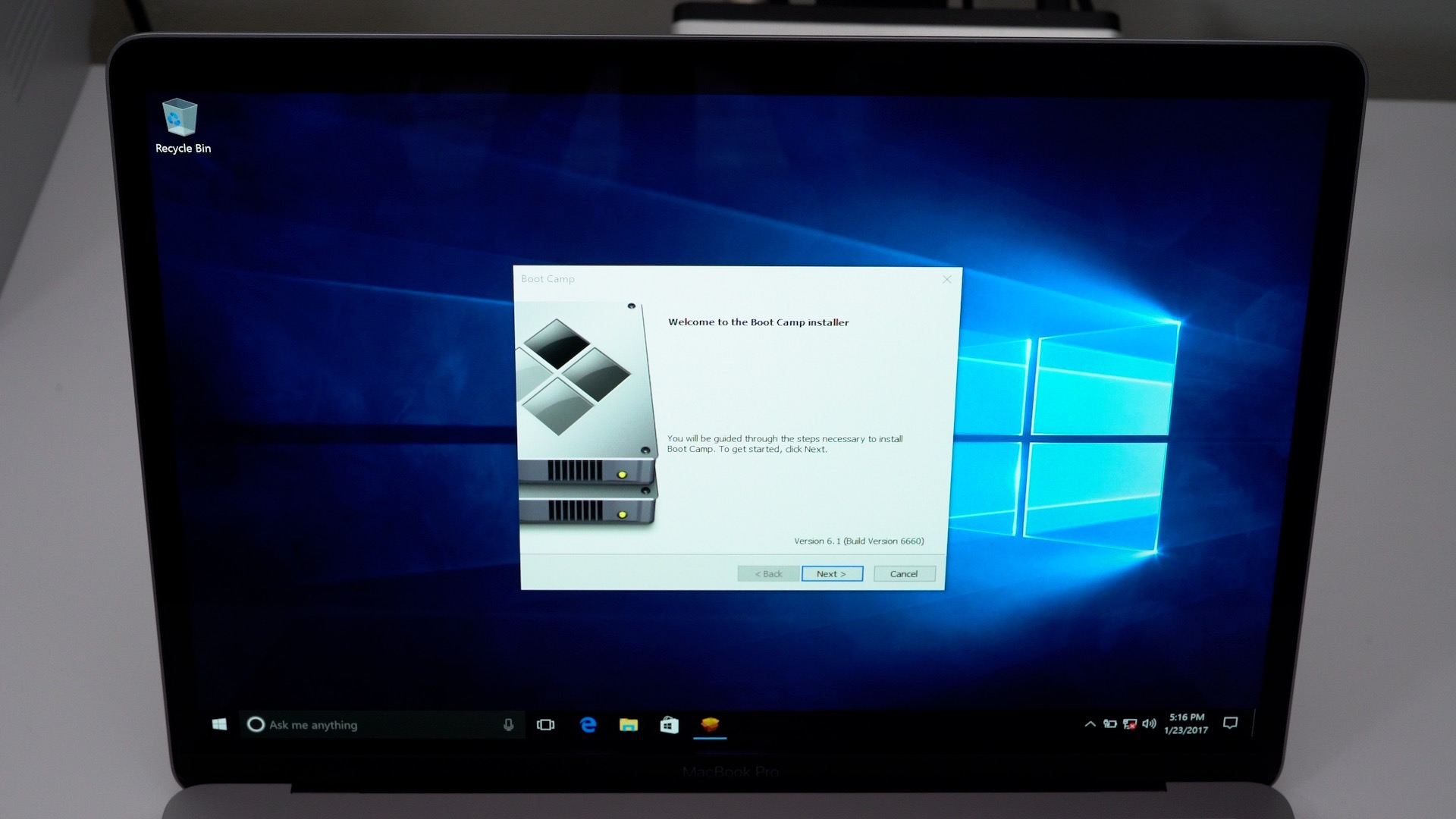
Step 14: Windows will now terminate up the setup procedure, and y'all'll eventually be taken to the Windows x desktop. On the Welcome to Boot Camp installer box, click Next and accept the terms of the license agreement. Click Install to proceed with the installation. If any additional driver installation boxes appear, be certain to Install those also. In one case the installer completes, make sure the Restart System box is checked, and click Finish to reboot your car.
Step 16: Upon rebooting, click the Wi-Fi icon in the organisation tray and connect to your local Wi-Fi network.
Apple Software Update
Note: This adjacent step is very important, considering it updates to the latest sound commuter. The initial commuter is known to crusade speaker problems, and then it's important that you lot update.
Footstep 17: Click the Showtime Push and select Apple Software Update. Select any of the updates that appear, and click the Install items push button in the bottom correct-hand corner. Click Yes on the User Account Command popular up windows that appears, and click Install on whatever additional related software installations.
Step 18: Ensure that any in-progress installations complete, and so click Yep on the Apple Software Update Restart pop upwards window that appears. Your Mac will reboot back into Windows x.
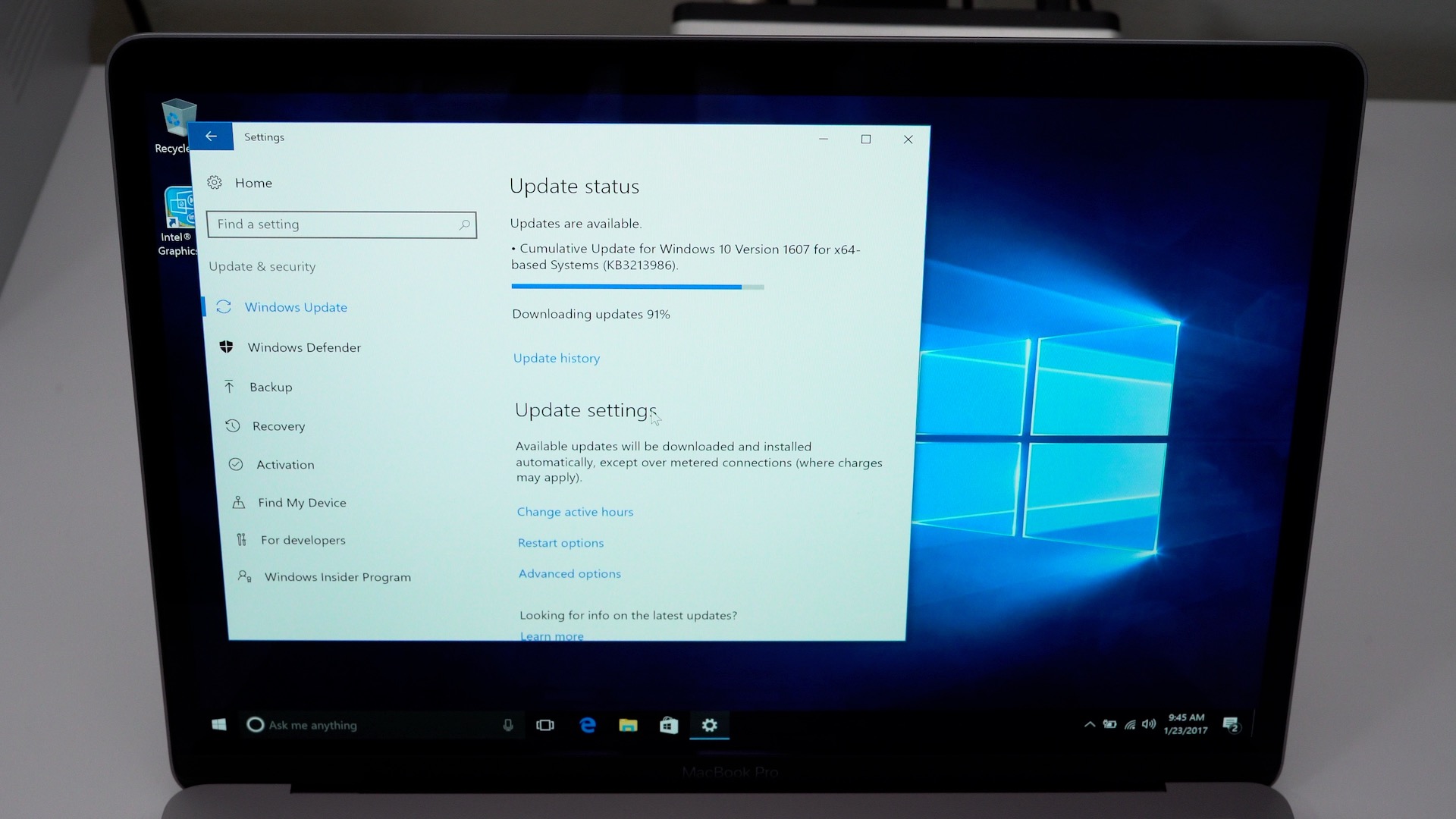
Footstep xix: Finally, go to Start → Settings →Update & security, and click the Check for updates push. Windows volition download whatsoever needed updates, and prompt you to restart after doing so. Click Restart now to consummate the installation and reboot.
Activate Windows or join the Windows Insider Plan
Yous have two (actually 3) choices from here. You can purchase a Windows 10 Activation primal and actuate Windows, or you lot tin can sign up to the Windows Insider Program. The downside of joining the Windows Insider plan is that you'll be running prerelease versions of Windows 10, which could possibly come with stability issues. Activating the Windows Insider Programme on your installation also means that you're willing to deliver usage data to Microsoft and its partners. The upside of the Windows Insider Program is that it provides y'all with a genuine activation without having to pay out of pocket.
The "third" choice is to not Actuate Windows at all, simply that's not a choice I recommended. You tin still use Windows 10 even if information technology'due south not activated, merely Microsoft volition bug you lot with a watermark, and restrict the corporeality of personalization that you tin can make to the Os. And then the moral to the story is this: Actuate it, by paying or joining Windows Insider Program, if you use it.
If yous wish to activate with a purchased key, click Beginning → Settings → Update & security → Activation, and click Change product key.
If you wish to join the Windows Insider Program, click Start → Settings → Update & security → Windows Insider Program, and wait until the Get Insider Preview builds page loads. Click the Get started button to begin. You'll need to sign in with your Microsoft business relationship to become started. Once you're signed in, click the Get started button once again to confirm your enrollment.
Rebooting into macOS or Windows
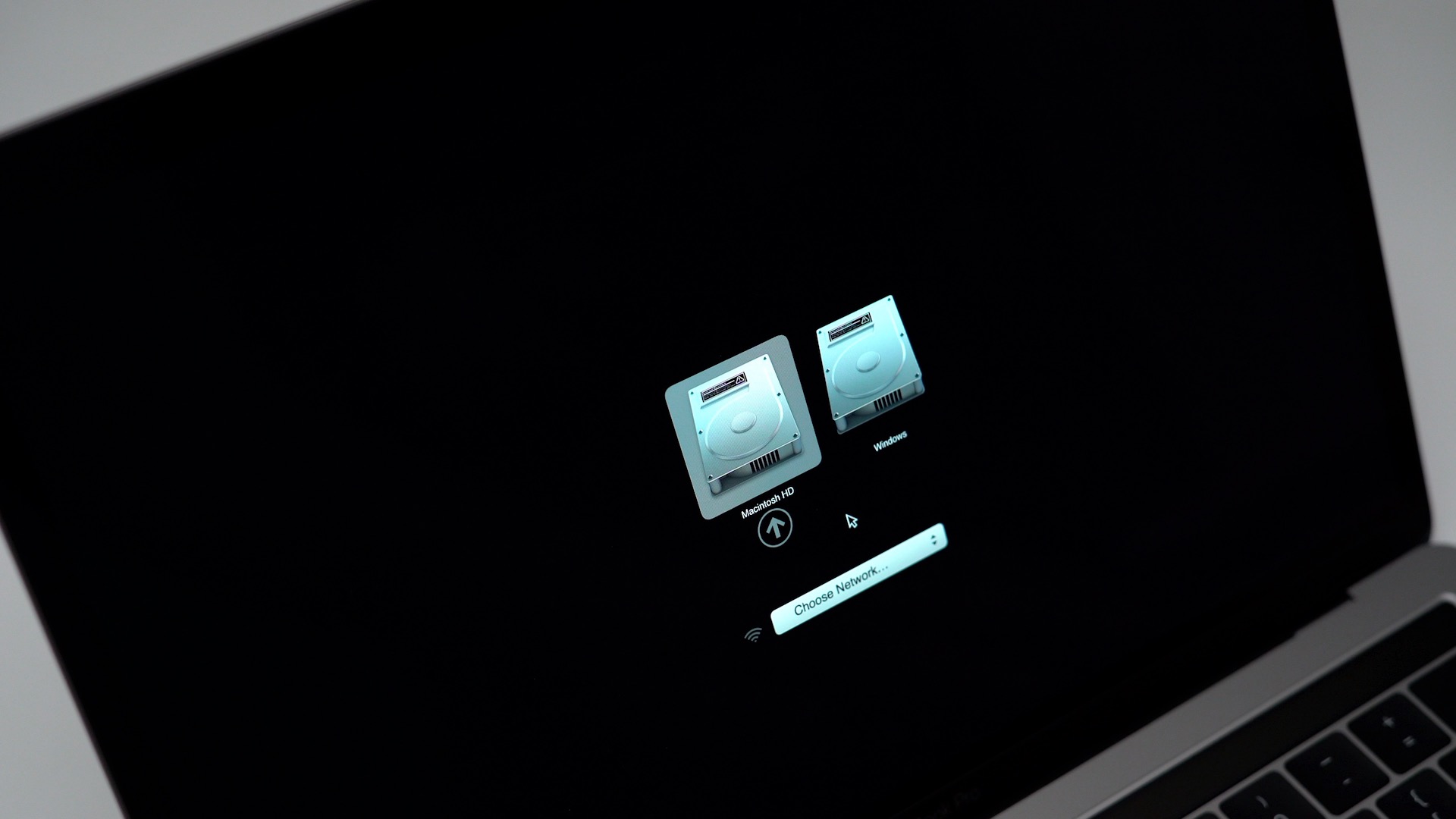
You lot can easily switch between macOS or Windows by holding the Option key on your keyboard while rebooting. When y'all do, you'll be able to select between the Windows and macOS installations.
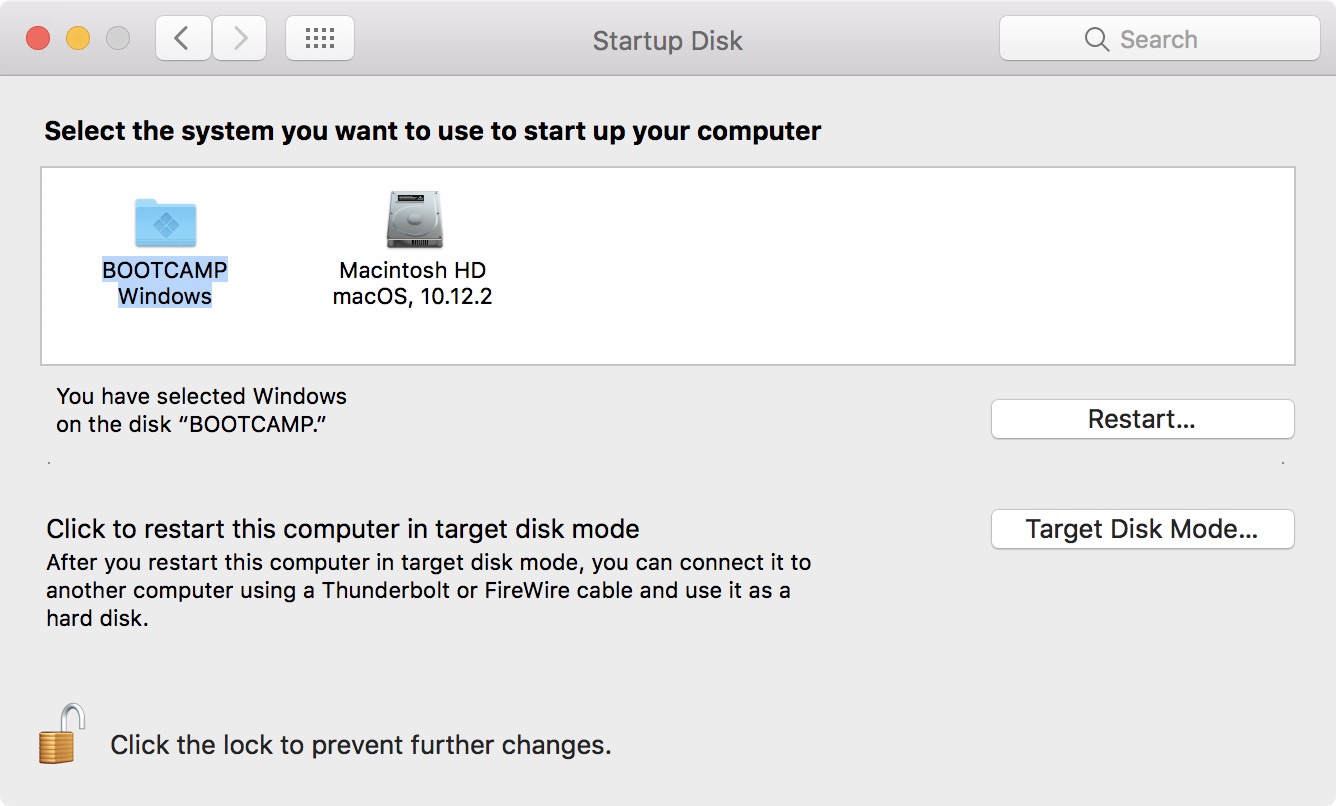
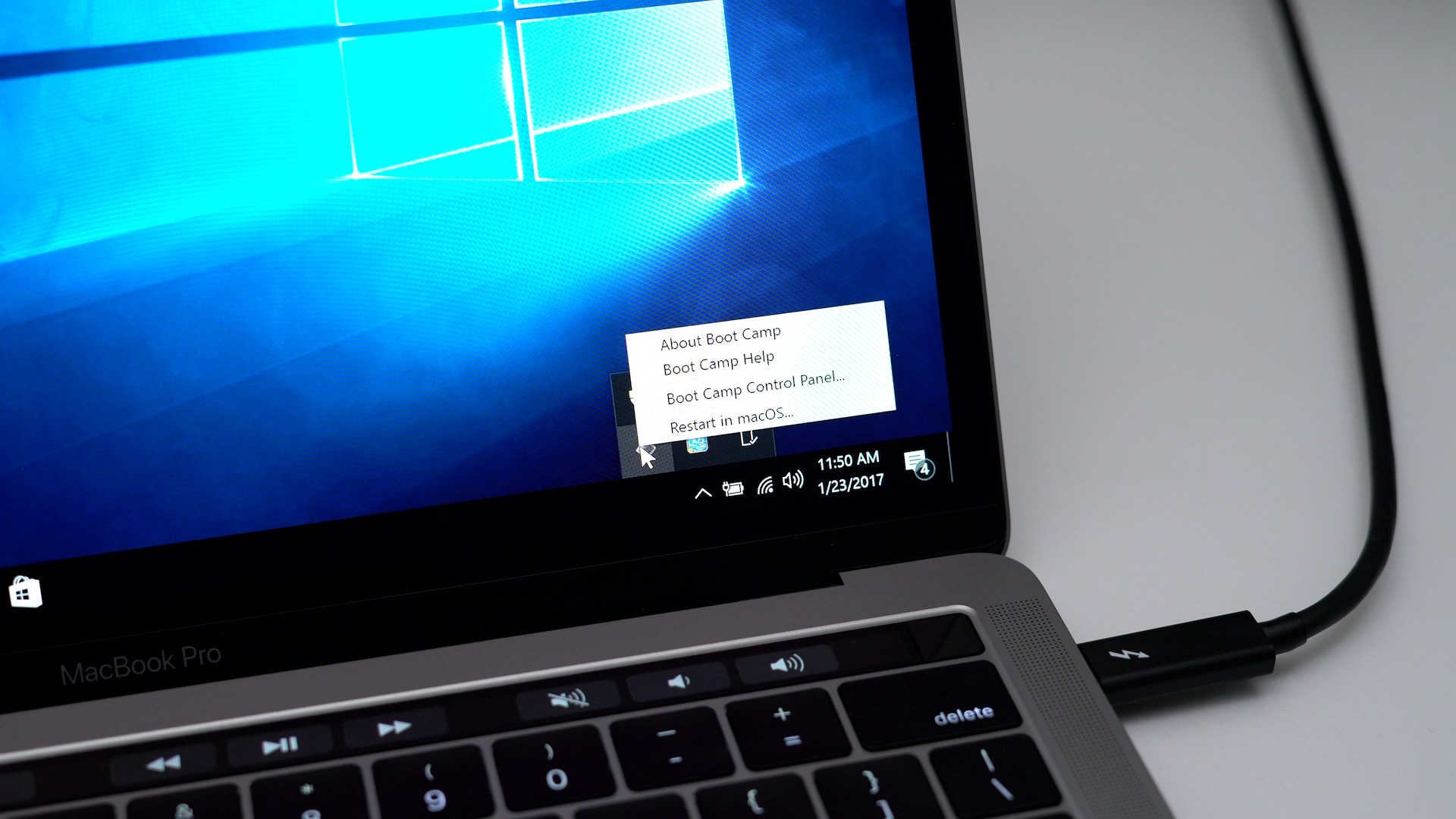
Y'all can also cull to reboot straight into macOS or Windows from either operating arrangement. On macOS yous but become to System Preferences → Startup Disk, and choose BOOTCAMP Windows. On Windows, you click the Organisation Tray → Boot Military camp, and choose Restart in macOS.
Conclusion
That may seem like a lot of steps, but it doesn't accept all that long to install Windows ten on your Mac. I more often than not discover that I can be fully up and running from the initial download in about half-hr. Your mileage may vary based on Internet speeds.
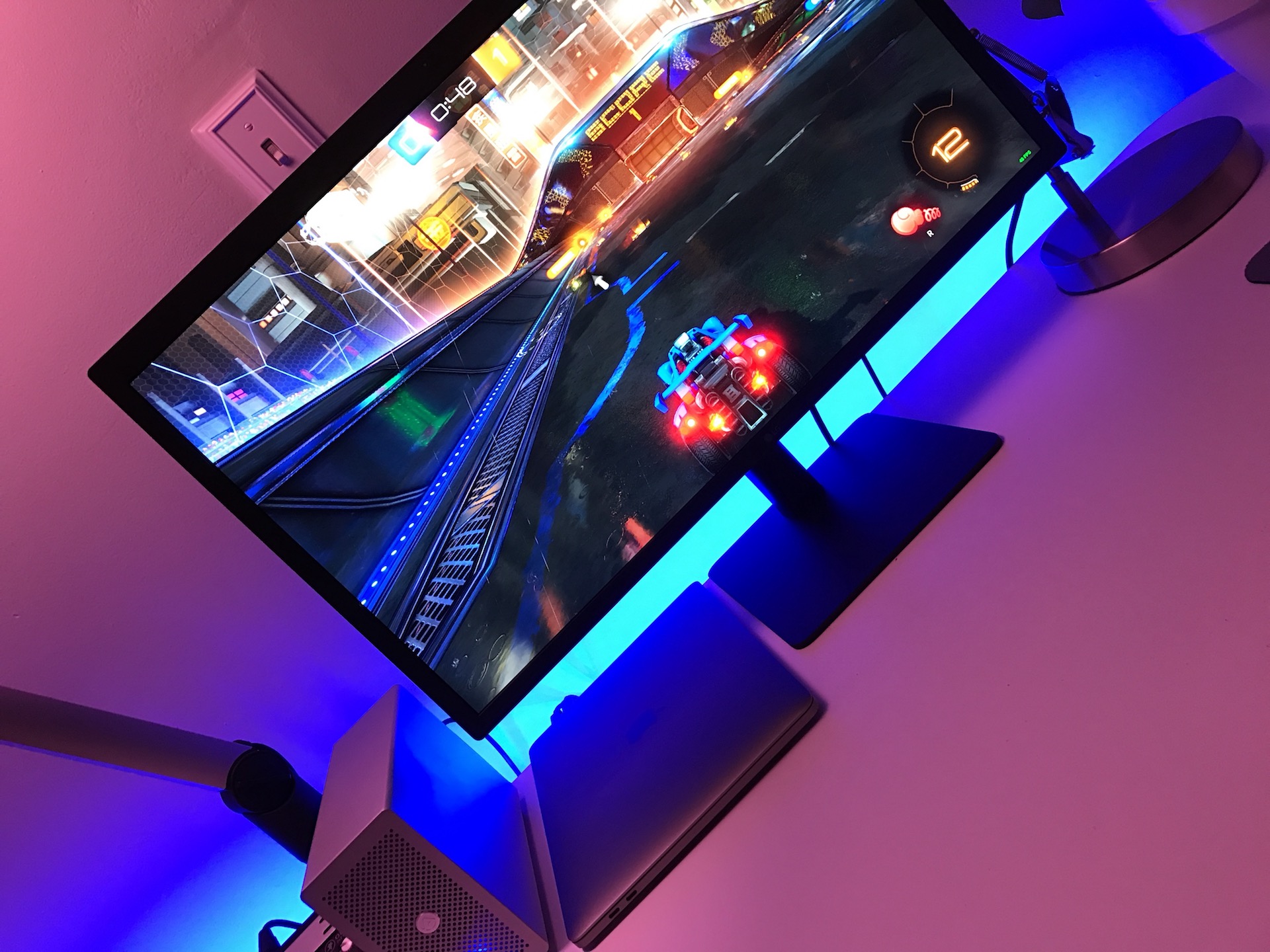
Gaming with the 2016 MacBook Pro using Windows 10 and an Nvidia GPU
But why in the earth would a Mac user ever want to utilize Windows? I program on covering this in future tutorials, only information technology essentially boils down to this: gaming. If you desire to turn your MacBook Pro into a bonafide gaming machine that can take advantage of the latest gaming hardware, then Windows information technology is, at least for at present. I'll be back with a full tutorial that shows how to plow your 2016 MacBook Pro into a Nvidia-powered gaming machine in a future postal service.
Install Windows ten using Boot Camp with an external drive
I've received tons of requests about installing Windows 10 on an external drive using Kicking Camp, and so we made another tutorial to explicate how. You tin can watch the respective video below.
FTC: Nosotros utilize income earning auto affiliate links. More.
Check out 9to5Mac on YouTube for more than Apple news:
Windows 10 Iso Download for Mac Problems
Posted by: pontonothess.blogspot.com